


How to Remove a Printer Hard Drive Safely: Step-by-Step Guide
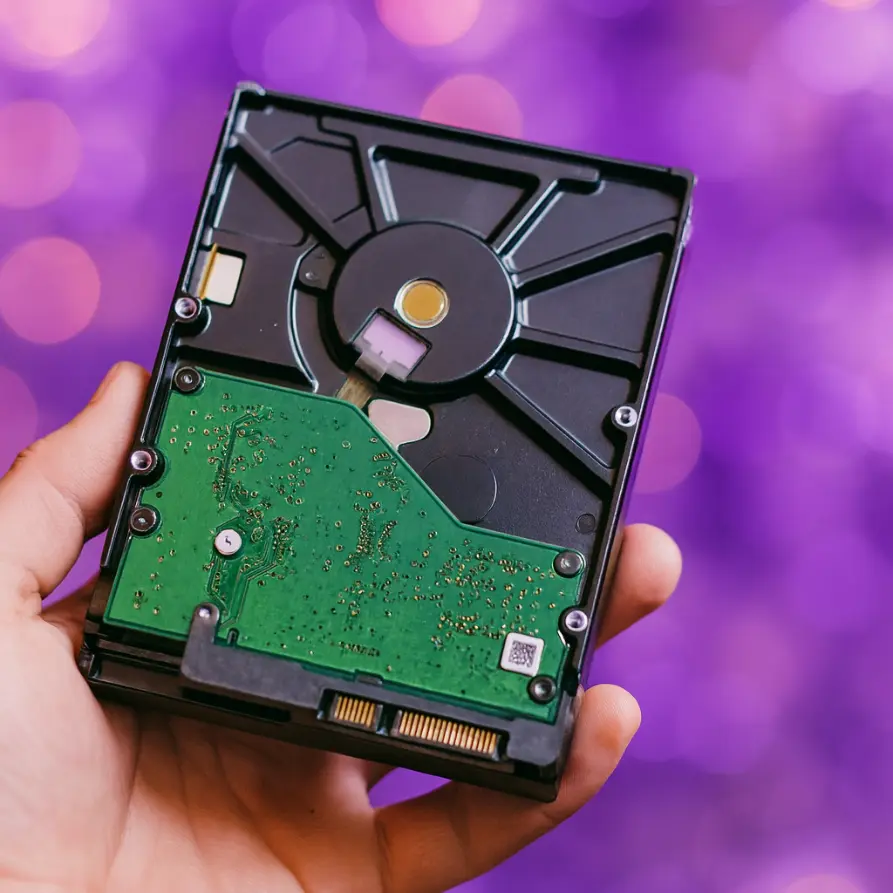
Printers today are more than just machines for printing documents—they are mini-computers with their own processors, memory, and even storage devices. Many modern office printers come with built-in hard drives (HDDs or SSDs) that store print jobs, scans, and sometimes confidential data. If you’re upgrading, troubleshooting, or retiring a device, knowing how to remove printer hard drive is essential for data security.
At Direct Macro, we specialize in IT hardware including printer hard drives, storage devices, and secure replacements, so we’ll walk you through the process in detail.
Why Do Printers Have Hard Drives?
Before diving into removal, it’s important to understand why manufacturers include drives:
- Temporary storage of print jobs – Spooling large documents.
- Scanning & copying storage – Saves scanned images before transfer.
- User authentication & logs – Stores secure print and usage data.
- Firmware & updates – Some printers load OS-like software from storage.
This means your printer hard drive can contain sensitive documents, making safe removal and secure wiping critical.
General Safety Tips Before Removing a Printer Hard Drive
- Turn off and unplug the printer to avoid electrical damage.
- Check the manual or service guide for model-specific instructions.
- Use anti-static precautions when handling internal parts.
- Back up or wipe data if the drive is still functional.
- Consider replacements—Direct Macro offers new and refurbished storage drives compatible with HP, Canon, Ricoh, and Epson printers.
Step-by-Step: How to Remove Printer Hard Drive
- Power down the printer and disconnect from all power sources.
- Locate the access panel—usually on the side or back of the printer.
- Unscrew and open the panel to expose the controller board and storage slot.
- Identify the hard drive—it may be a 2.5-inch SATA HDD, SSD, or proprietary module.
- Disconnect SATA/IDE cables (or ribbon connectors).
- Gently slide out the drive from its bracket or bay.
- Reassemble the printer and ensure it functions without the drive (some models may need firmware reset).
Brand-Specific Instructions
How to Remove Hard Drive from HP Printer
HP LaserJet Enterprise and OfficeJet Pro models often use 2.5-inch SATA drives mounted in cages. Locate the service panel, unscrew the bracket, and slide out the drive. Always re-secure the cage after removal.
How to Remove Hard Drive from Canon Printer
Canon imageRUNNER printers use dedicated HDD/SSD kits. After accessing the back cover, the hard drive is usually attached to the main controller. Carefully detach cables, remove the mounting screws, and lift out the module.
How to Remove Hard Drive from Ricoh Printer
Ricoh MP series printers feature hard drives mounted on side panels. Once the cover is removed, the drive connects via standard SATA cables. Remove screws, slide out the HDD, and ensure secure disposal.
How to Remove Hard Drive from Epson Printer
Epson Workforce and EcoTank business printers may include SSD modules instead of full HDDs. After opening the rear access panel, unplug the connector, release the latch, and remove the SSD carefully.
What to Do After Removing the Drive
- Data security – Wipe the drive with data erasure software or physically destroy it.
- Replacement – Install a fresh HDD/SSD compatible with your printer. Direct Macro provides certified replacement printer hard drives for HP, Canon, Ricoh, and Epson.
- Recycling – Dispose of old drives responsibly following e-waste regulations.
Final Thoughts
Learning how to remove printer hard drive is crucial for protecting sensitive information and maintaining device performance. Whether you’re working with HP, Canon, Ricoh, or Epson printers, the process is straightforward with the right precautions.
For reliable replacements, upgrades, and secure storage solutions, trust Direct Macro—your global supplier for SSDs, HDDs, and enterprise IT hardware.
Frequently Asked Questions (FAQs)
1. Why should I learn how to remove printer hard drive?
Because many printers store confidential documents on their internal HDD or SSD. Removing or wiping the drive ensures your sensitive data stays protected when upgrading, servicing, or recycling the printer.
2. Is removing a printer hard drive safe for my device?
Yes, if done properly. Always power off the printer, disconnect cables, and follow brand-specific instructions. If you plan to keep using the printer, check whether it requires a replacement drive or firmware reset.
3. How to remove hard drive from HP printer safely?
HP printers often use 2.5-inch SATA HDDs in cages. Open the service panel, unscrew the bracket, and gently slide the drive out. Always handle with care and follow the HP service manual if available.
4. How to remove hard drive from Canon printer?
Canon imageRUNNER models typically use proprietary HDD or SSD kits. Remove the rear panel, locate the drive on the controller board, unscrew it, and detach the cables before lifting it out.
5. Can I remove the hard drive from a Ricoh or Epson printer?
Yes. Ricoh models usually have SATA HDDs on side panels, while Epson printers often use SSD modules. In both cases, open the access panel, disconnect the connectors, and carefully remove the drive.
6. What should I do after removing the printer hard drive?
You should securely erase or destroy the drive to protect sensitive data. If the printer needs a new one, replace it with a compatible HDD/SSD. Trusted suppliers like Direct Macro offer certified replacements.
7. Do all printers have hard drives?
No, only enterprise or multifunction office printers typically include internal storage. Home printers generally don’t have hard drives.



 English
 French
 Spanish
 Portuguese
 Deutsch
 Turkish
 Dutch
Dutch
 Italiano
 Russian
 Romaian
 Portuguese (Brazil)
 Greek
Greek