


How To Turn On The Collate Setting On Your Printer?
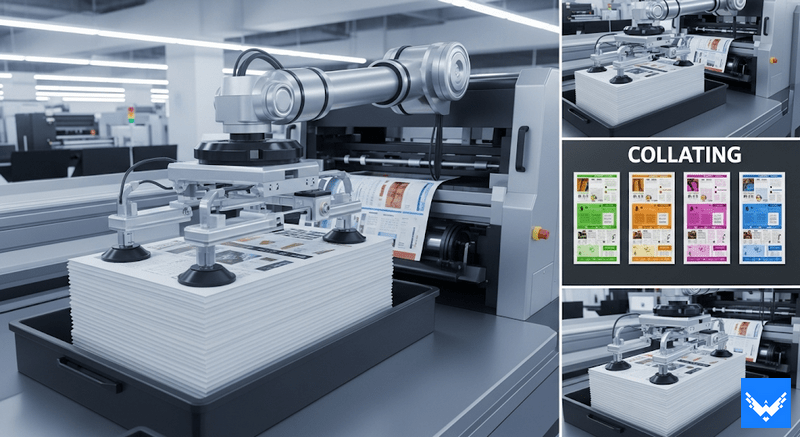
Collate in printing means arranging printed pages in the correct order when printing multiple copies of a document. If you print three copies of a ten-page file, collate will make each copy come out as 1 to 10 in sequence instead of all page 1s together, then all page 2s and so on. This makes documents ready to use without sorting them by hand.
Why is collating important for documents?
Collating becomes important because documents stay in order after printing instead of getting mixed into separate page stacks. Without this feature, pages come out in groups, and users must arrange everything manually, which takes extra time when handling large files. For example, teacher printing exam papers for a class receives mixed stacks when collate remains off, which creates confusion and increases work time, while turning collate on allows each paper set to come out complete and ready for use.
Even in offices, reports, invoices and forms need proper order. A small mistake in printing can lead to big confusion. That is why people often check the collate in print option before starting large printing tasks.
Where can you find collate options in printer settings?
Collate option appears inside the print window after pressing the print command from any software such as Word, PDF reader or browser. This option usually stays near the copies setting where the number of prints gets selected and most printers show a checkbox labeled “Collate” or icon showing stacked pages. On Windows and Mac systems, the print window opens after clicking print, and inside this window paper size, copy count and collate setting become available for selection. Most users easily find this option once location becomes familiar.
How do you turn on collate on Windows devices?
On the Windows system, the file opens first, then Ctrl + P gets pressed which opens the print window where printer selection and settings appear. Inside this window, the number of copies gets selected and near this setting a collate checkbox appears which needs to be selected so Windows can arrange pages in proper order during the printing process. If the collate option does not appear directly, then the “Printer Properties” or “More Settings” section opens additional settings where this feature becomes visible.
How do you turn on collate on Mac devices?
On the Mac system, the file opens and the print option gets selected from the File menu, which opens the print settings panel containing multiple configuration options. Inside this panel, a section named “Copies & Pages” or “Layout” appears where a collate checkbox becomes available for selection, allowing the system to arrange pages in correct order for each copy. After selecting the collate option, the Mac system processes the print job in sequence so each document copy comes out complete without mixing pages between sets.
What happens if collate is turned off?
When collate remains turned off, the printer prints pages in grouped order instead of complete sets, which means all page 1s print first, then all page 2s and so on until the final page number is completed. This output creates extra work because users must manually sort pages into correct order before use, which increases time and effort during printing tasks. During manual sorting, mistakes can happen where pages get misplaced or mixed, which affects final document quality and usability.
How does collating help in office and school work?
Collating helps maintain an organized workflow in both office and school environments where a large number of printed pages are handled daily. In offices, reports, invoices, contracts and presentation documents come out in the correct order when collate remains enabled, which helps teams use documents directly without extra sorting work. In schools, teachers print worksheets, exams and assignments, and collating ensures each student receives a complete set without confusion or missing pages.
Can all printers support collate features?
Most modern printers support collate features because this function is included in standard printing software and driver systems. Some older or basic printers may not show collate setting directly, but in many cases computer software handles the collating process even when printer hardware remains simple. Laser printers and inkjet printers commonly support this feature through printer drivers, allowing users to enable or disable settings from the print menu. When an option does not appear, checking updated driver or printer settings usually helps restore access to the collate function.
What are common mistakes when using collate settings?
One common mistake occurs when collate remains unchecked during multi-copy printing, which results in mixed page stacks that require manual sorting later. Another mistake happens when users confuse page range selection with collate function, which leads to incorrect output format even when correct pages get selected.
Some users also skip the print preview step, which increases the chances of printing errors and wasted paper usage during large print jobs. Checking the collate option in the printer before the final print command helps avoid these problems and keeps output organized from start.
How does collate improve bulk printing tasks?
Collate improves bulk printing by ensuring each printed copy comes out in complete order without manual sorting, UPacked box manufacturer. Without collation, large documents create multiple unsorted stacks that require extra time for arrangement before use.
During high-volume printing tasks in offices or schools, collating reduces confusion and helps complete work faster with fewer errors. This function becomes important when handling large reports, manuals or document sets where accuracy and order matter for final output.
How can packaging businesses use printed collated documents?
Packaging work depends on clear and ordered documents that guide design, production, and labeling processes and collate helps maintain this order during printing. Companies like UPacked use printed sheets for packaging instructions, design layouts, and production details, where the correct sequence of pages ensures a smooth workflow.
When documents remain properly collated, production teams can follow instructions without confusion, which reduces mistakes in the packaging process. This simple printing setting supports better coordination between design and manufacturing stages in the packaging industry.
Why is understanding printer settings useful for everyday users?
Understanding printer settings helps users control the printing process more effectively, which reduces wasted paper, time and effort during daily tasks. Small settings like collate make a difference in output quality because correct configuration ensures documents come out in proper order without manual fixing. Students, office users and home users benefit from knowing these settings because document handling becomes easier and more organized.


 English
 Arabic
 Français
 Español
 Português
 Deutsch
 Türkçe
 Italiano
 Russian
 Romaian
 Portuguese (Brazil)
 Greek
Greek