


How to Open NSF Files Without Lotus Notes: Convert NSF to PST for Easy Access & Secure Backup
Introduction
NSF files are typically linked with Lotus Notes (formerly called HCL Notes). They can store emails, contacts, calendars and other mailbox data, but without the original email application, they can be difficult to access. This can be a problem, especially if users ever need to access old messages, move mailbox data, or keep a backup readily available.
A practical option is to convert NSF data to PST format. As PST is the native Outlook data file, the converted mailbox can be accessed using Microsoft Outlook without relying on the original Notes environment. This article discusses the file formats, benefits of migration, a manual method, its limits and a professional method for a more effective conversion.
What is the NSF File Format?
NSF stands for Notes Storage Facility. It is a database file format used by Lotus Notes and HCL Notes to hold many types of information. The NSF file can contain emails, attachments, contacts, calendars, journals and other application data, depending on how the database is set up.
The format is closely associated with the Notes environment. So, users who no longer have Lotus Notes installed can have a hard time viewing or extracting information straight from an NSF database.
What Is a PST File?
PST is short for Personal Storage Table. It is a Microsoft Outlook data file that is used to locally store email messages, attachments, contacts, calendars, tasks and other mailbox information.
PST files are a useful way to retain mailbox information in a format that can be accessed and handled in Outlook, since Outlook is utilised in personal and professional settings.
Why Migrate NSF to PST?
There are many scenarios when converting a Notes database into a data file compatible with Outlook is useful:
- Organisations that are migrating from Notes to Outlook can migrate historical mailbox information.
- Users can access converted messages from the standard Outlook interface.
- A PST file can be a stand-alone mailbox archive.
- Companies migrating their email platform might retain legacy mailbox records.
- Several mailbox-related items can be managed in an Outlook data environment.
The key advantage is reduced dependence on the original Notes application while still keeping key mailbox information.
Export the NSF Data into Outlook PST Manually
If you still have Lotus Notes and you can access the database, a manual method might work. Usually, the process entails exporting or moving mailbox information out of the Notes environment and then making that information useful in Outlook.
Manual Method: Export Data from Lotus Notes
1. Open Lotus Notes and open the NSF database you require.
2. Choose the emails or items in a mailbox that you want to retain.
3. Use the export or save options in Lotus Notes to export the relevant data.
4. Export the information to a supported format or location.
5. Open Microsoft Outlook and import the exported data if Outlook supports it.
6. Check the imported email, folder and attachments in Outlook.
7. If necessary, organise the imported information in an Outlook data file.
Note: The manual method is an indirect workaround, not a direct NSF-to-PST conversion. It requires access to Lotus Notes and can involve exporting mailbox data before importing it into Outlook.
Where Does the Manual Method Fall Short?
If your needs are simple, manual export can be appropriate, but for a full mailbox migration, you need a practical solution.
- If Lotus Notes is not available, the manual way is not possible.
- There are no native export options for a straightforward and comprehensive NSF-to-PST procedure.
- If you have to deal manually with a lot of messages, folders and attachments, you can spend a lot of time.
- Folder structure, attachments and other mailbox attributes need special processing post-export.
- Repeatedly doing things manually increases the chances that something gets missed or moved wrong.
These reasons make a dedicated conversion utility the better choice if you want a structured and repeatable migration.
Pre-migration checklist
If you have a few preparations before converting mailbox databases, the operation can go more smoothly:
- Keep a backup copy of the original NSF files.
- Make sure that the source files are available and readable.
- Ensure adequate storage space for the PST files you will receive.
- Choose whether you want to back up all mailbox data or only certain databases.
- If the files you create will be opened in Microsoft Outlook, make sure that it is available.
- Close any applications that can lock or change the source files during processing.
Such checks help keep unwanted interruptions to a minimum during conversion.
Professional Approach: A More Direct Migration Workflow
If you are a user who needs dedicated conversion, then a professional NSF migration utility can make the task easy. DataVare NSF to PST Converter Expert Tool provides a dedicated workflow to convert NSF databases to PST files for Outlook without spending much time on the manual export process.
Professional Steps to Convert NSF to PST
- Download the converter and run it on your Windows computer.
- Add NSF files that you want to convert into PST format.
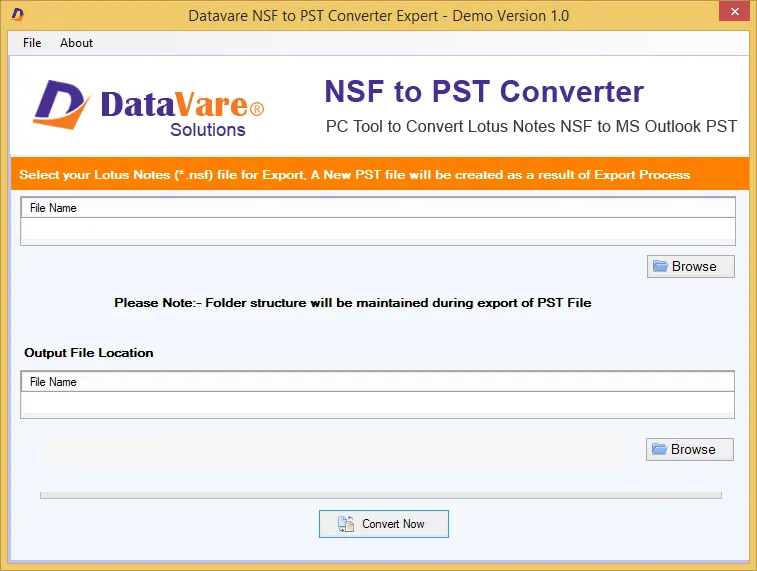
- Preview the mailbox data to see what folders and items are available.
- Select PST for the destination format.
- Specify the folder to Save Converted Files.
- Start the NSF to PST conversion process.
- After processing, open the generated PST file in Outlook and check emails, folders and attachments.
This technique is especially beneficial when working with many databases or when manual extraction is unfeasible.
Note: The professional conversion tool requires the pre-installation of Lotus Notes on the system before initiating the NSF to PST conversion process. Make sure that Lotus Notes is installed and accessible correctly so that the converter can read and process the NSF database files successfully.
What to Look For in an NSF Migration Utility
A good professional converter should include features to make mailbox migration easier and more controllable, such as:
- NSF to PST Conversion: Direct Migration for Outlook.
- Selective mailbox conversion: To process data by user.
- Use folders and email: To keep your files organised in your inbox.
- Attachment management: For holding files attached to communications.
- Preview function: For reviewing source data before conversion.
- Batch processing functionality: To efficiently process several NSF files.
- User-friendly workflow: Decreases technical complexity.
- Output verification: The converted mailbox data can be checked after the process.
Conclusion
The NSF file is structured for the Notes environment and thus makes accessing NSF files without Lotus Notes challenging. Converting the mailbox data to PST provides a practical way for users who want to access historical emails and related information through Outlook.
Manual export can work for small and simple requirements but might be complex for huge datasets, many folders or large files. Professional migration software can provide a more streamlined approach by combining source selection, conversion, and PST generation into a single workflow.
Always back up the original NSF files before starting any migration and review the converted PST data after the procedure. This allows the core mailbox information to be retained while migrating to a more accessible Outlook-based environment.
FAQs
Q1. How can I open NSF files without Lotus Notes?
Ans. An NSF file is for the Notes environment, making it difficult to open directly without suitable software. A more workable option is to convert the database to a more universally supported format such as PST.
Q2. What is the advantage of PST for migrated mailbox data?
Ans. PST is an Outlook data format that can contain emails, attachments, contacts, calendars and other mailbox objects, thereby making it suitable for Outlook-based access and archiving.
Q3. Is manual conversion of NSF files suitable for large-size mailboxes?
Ans. You might be able to do this manually with small data sets, but once you start working with large databases or several mailbox folders, the process can quickly become time-consuming and difficult to monitor.
Q4. Can attachments be kept on NSF during conversion?
Ans. The maintenance of attachments is contingent on the conversion technique and the software features. Before you migrate, check that your specific converter can also handle attachments.
Q5. Do I need to back up my NSF files before converting?
Ans. Yes. It is good to keep an original copy of the database, since this provides a source for recovery should the conversion or the verification procedure not deliver the intended outcome.

 English
 Arabic
 Français
 Português
 Deutsch
 Türkçe
 Dutch
Dutch
 Italiano
 Russian
 Romaian
 Portuguese (Brazil)
 Greek
Greek