


How to Fix TGZ to MBOX Conversion Failures and Email Access Issues with WholeClear
In an ideal world, email archive conversion from one format to another would be a quick background job. But if you have ever tried to export Zimbra TGZ files to MBOX mailboxes and found the whole process stuck in the middle, spinning forever or showing some cryptic system errors, then you are not alone.
Common bottlenecks in cross-platform email migrations are TGZ conversion hang-ups and client import issues. A failed conversion costs precious time — whether it’s converting from Zimbra Desktop or Zimbra Server to Mozilla Thunderbird, backups for legal discovery, or merging years of enterprise communications for long-term archiving.
This troubleshooting guide explores why TGZ to MBOX conversion fails and how dedicated automated tools like WholeClear TGZ to MBOX Converter overcome common file format issues.
Understanding structural differences: MBOX vs. TGZ
Knowing the two different archive structures and how they handle data can help you avoid conversion freezes:
-
TGZ (.tgz /.tar.gz): A compressed archive format, often used by Zimbra Collaboration Suite and Zimbra Desktop. It includes full mailbox databases with subfolders in a compressed TAR container, MIME raw files (.eml), calendar items (.ics), contact cards (.vcf), and metadata indexing files.
-
MBOX (.mbox) is a single-file format. A whole mailbox in a single database file. It has hundreds or thousands of individual e-mail messages, one after the other. This is the default format used by popular email clients such as Mozilla Thunderbird, Apple Mail, Eudora, and Postbox.
Converting TGZ to MBOX requires unpacking the compressed archive, parsing complex directory structures and MIME headers without corrupting metadata or attachments, and then appending the extracted messages into a clean, unified MBOX archive.
Causes of TGZ to MBOX Conversion Failure
Manually extracting large Zimbra TGZ archives or converting them with generic utilities can run into several technical roadblocks that may impede or cause the failure of the migration process:
-
Archive Decompression & RAM Memory Bottlenecks: Zimbra TGZ archives are typically a single block of thousands of emails compressed together. The basic utilities try to expand and work with the whole archive directly in active RAM. And that is what causes the " Application Not Responding " crashes.
-
Nested & Heavy Attachments: Complex multipart MIME boundaries, inline graphics, and heavy PDF/ZIP attachments in Zimbra messages often break unoptimized extraction engines, resulting in export streams hanging halfway.
-
Non-standard header formatting: Zimbra exports may contain internal system tags or custom MIME attributes. Standard converters skip or freeze files with non-standard metadata attributes.
-
Dependence on 3rd Party Clients: Most of the traditional conversion workarounds require either a live Zimbra Server install or a full-fledged email client installed behind the scenes. Otherwise, if not set up correctly, the process will not run at all.
Manual workaround and its hidden dangerous risks
The Standard Manual Method.
In the classical manual process, the archive must be extracted manually, and intermediate clients are used:
-
Extract the .tgz archive into individual subfolders and .eml files using an extraction tool (7-Zip, WinRAR, etc).
-
Launch Mozilla Thunderbird.
-
Add a third-party extension, e.g., ImportExportTools NG.
-
Create a new local folder in Thunderbird.
-
Drag and drop the extracted .eml files into the new Thunderbird folder.
-
Right-click the folder, then choose ImportExportTools NG and click Export folder as MBOX file.
Why Manuals Don't Work
-
Multi-Step Complexity: Large TGZ archives must be manually extracted, creating thousands of nested subfolders that impede drag-and-drop management and increase the risk of errors.
-
Loss of Formatting and Metadata: Drag-and-drop importing often results in loss of inline images, broken folder hierarchies, and changes to original header fields (To, From, CC, Date, BCC) by intervening clients.
-
Not Scalable and Time Consuming: Manual addition of tens of gigabytes of TGZ data to the application will most likely result in the application freezing or buffer overflow errors.
Automation Solution: WholeClear TGZ to MBOX Converter
In case of failure or a hang in manual extraction, the way out is to switch to a dedicated tool like WholeClear TGZ to MBOX Converter. This eliminates the external dependencies and uses the compressed archives directly.
Conversion Workflow – Step by Step
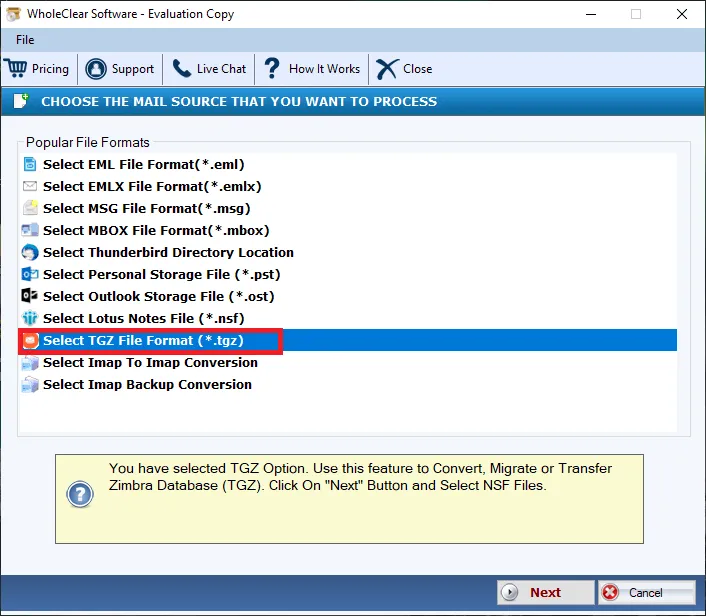
1. Download the software and run it:
Download WholeClear TGZ to MBOX Converter for Windows PC. No installation of Zimbra Server is required. No background mail clients needed.
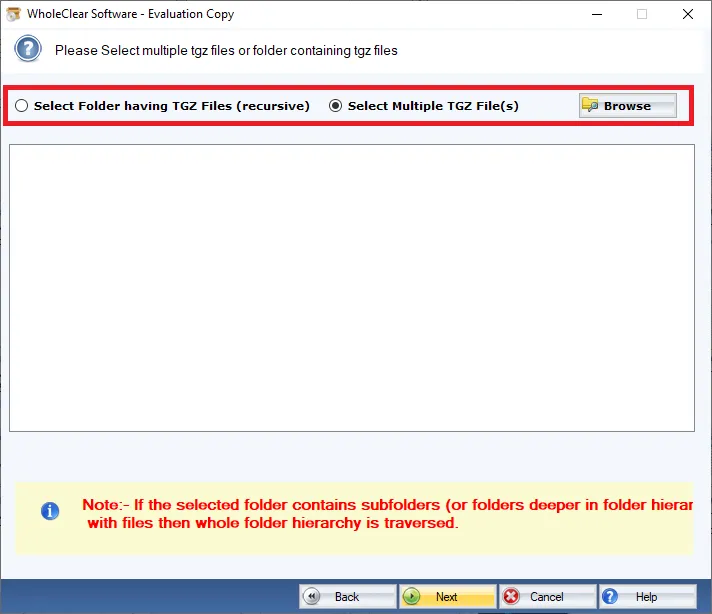
2. Select File or Folder Mode:
Select File Mode to convert a single TGZ file or Folder Mode to import a folder of TGZ archives for batch conversion.
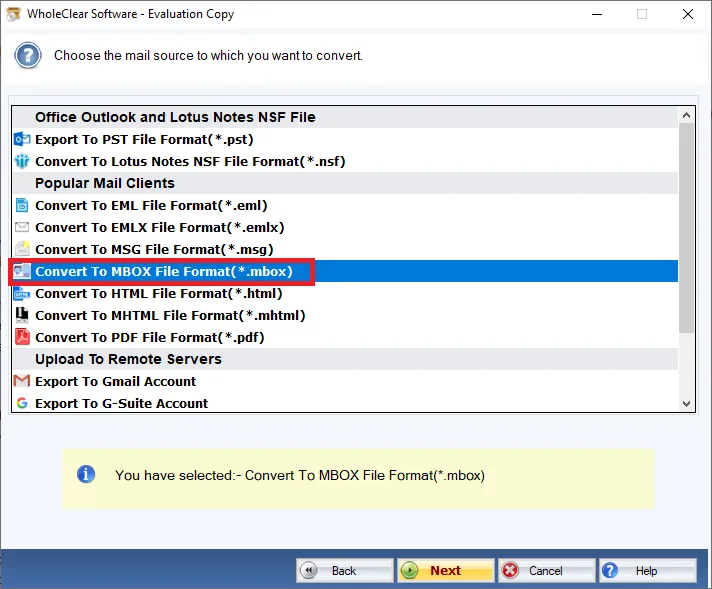
3. Browse & Import TGZ Archive:
Select your Zimbra TGZ files on your local or network drives to upload to the conversion engine.
4. Mailbox contents:
You can preview the parsed mailbox structure of the TGZ file in the built-in preview panel before conversion to check the email list, folder hierarchy, and attachments.
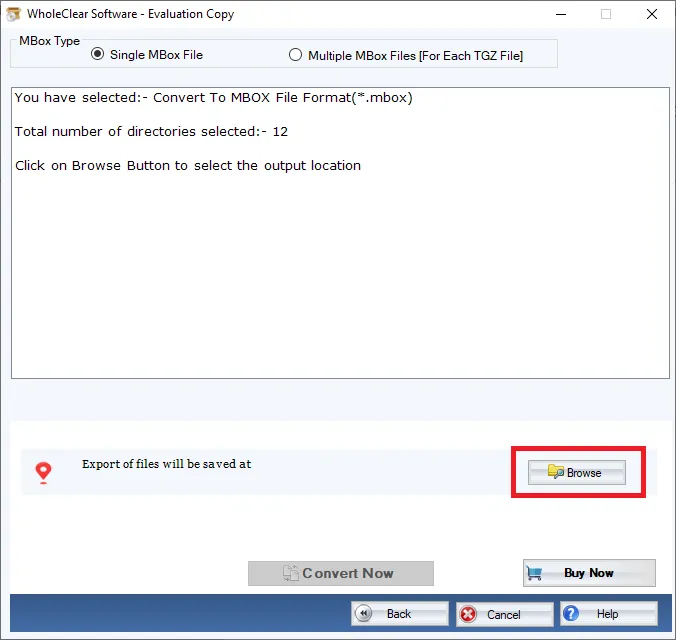
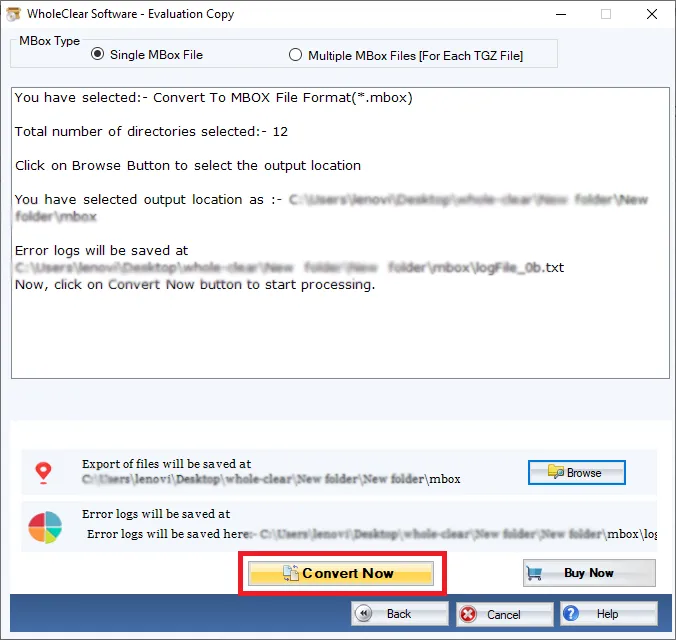
5. Select Output Path and Convert:
Select the destination path to save converted MBOX files on your PC and hit the Convert Now button to create native MBOX files instantly.
Features to Look for in Software
-
Native TGZ Extraction Engine: Engineered to extract and transform the compressed Zimbra archives directly to Native MBOX structures.
-
Bulk processing: No size limit for TGZ files or archives, and you can convert multiple at a time.
-
Multi-Client Support: Export standard MBOX files that can be used in Mozilla Thunderbird, Apple Mail, Eudora, Entourage, Postbox.
-
Dual Selection Modes: Single user mailbox or enterprise-level batch migration with flexible file & folder selection modes.
-
Custom Output Mapping: Save the converted mbox output to any local, external, or network location of your choice.
Main advantages
-
100% Standalone Operation: No need to have Zimbra Server, Thunderbird, or any Active Account configuration.
-
Complete Data Integrity: Preserves the original folder hierarchy, MIME properties, header metadata, inline images, and attachments.
-
Light system footprint: Works fine on minimal hardware configurations (512MB RAM, minimal disk space on Windows 11, 10, 8, and 7).
-
Windows native tool: For Windows environments. Windows only. Users on macOS or Linux will need a Windows VM or compatibility layer.
-
Built for healthy archives: For healthy TGZ archives. Severely damaged or incomplete compressed archives may need to be fixed before conversion.
Conclusion & What's Next
Zimbra TGZ to MBOX conversion gets stuck, and import does not work due to memory overload, complex MIME attachments, and dependency on manual client add-ons. Simple workarounds will work for small isolated test files, but large-scale migrations require a conversion engine.
WholeClear TGZ to MBOX Converter is a standalone application. It preserves email headers and folder structure. The application doesn’t crash during bulk operations.
FAQs Frequently Asked Questions FAQs
Q1. Why does the TGZ to MBOX conversion get stuck in the middle?
If lightweight decompression scripts or client add-ons run out of system memory while parsing large attachments or extracting deeply nested folder structures inside large TGZ files, freezing can occur. External conversion streams the data directly to the destination format so you aren’t limited by system RAM.
Q2: How to install Zimbra Server or Mozilla Thunderbird?
No, WholeClear TGZ to MBOX Converter is a stand-alone utility that creates native MBOX files directly from TGZ archives without requiring Zimbra, Thunderbird, or any third-party plug-ins.
Q3: Do I lose my inline pictures and attachments from e-mails?
Yes. The software parses the entire structure of the MIME message, including all embedded images, HTML formatting, and document attachments.
Q4: Can I convert multiple tgz files at the same time?
Yes (166). Folder Mode allows you to select a directory with several TGZ files and convert them all at once to separate MBOX files.


 English
 Arabic
 Français
 Português
 Deutsch
 Türkçe
 Dutch
Dutch
 Italiano
 Russian
 Romaian
 Portuguese (Brazil)
 Greek
Greek